

To learn how to fix GIFs that don't work in Teams, here is a complete article.
It's no secret to anyone that GIFs add style to your boring text conversation, therefore, we need to restore them so as not to keep the monotonous nature of the conversation alive. Here's what you can do if GIFs don't work in Teams.
How to Fix GIFs not working in Teams
Resolution Procedures:
Network Connectivity Verification:
Initiate troubleshooting by verifying a stable internet connection for the affected user's device. Inconsistent or inadequate internet connectivity can disrupt Teams' ability to display GIFs.
Optional Connected Experiences:
Within the Teams application, navigate to the user settings. Locate the Privacy section and ensure the Optional connected experiences option is enabled. This functionality facilitates Teams' interaction with external services, potentially including GIF providers.
Microsoft Teams Cache Clearance:
Close the Microsoft Teams application entirely.
Access the File Explorer and navigate to the following directory, replacing %username% with the specific user's username:
%appdata%\Microsoft\Teams
Delete all files and folders within this directory. This clears the Teams cache, potentially eliminating temporary data that might be causing the GIF malfunction.
Hardware Acceleration (Optional):
In scenarios where hardware acceleration conflicts with GIF functionality, disabling it can resolve the issue. Within the Teams settings, access the General section and locate the Turn off hardware acceleration option. Toggle this option to On. Restart Teams for the changes to take effect.
Additional Considerations:
Team Administrator Permissions: Be mindful of potential restrictions implemented by team administrators.
If the aforementioned solutions prove ineffective, collaborate with team administrators to verify if they have restricted GIF usage within the specific team.
Microsoft Teams Updates:
Ensure that the affected user's Microsoft Teams application is updated to the latest available version. Outdated versions might harbor bugs that can impede GIF functionality. Encourage users to update Teams regularly.
By following these methods, IT support staff can effectively troubleshoot and rectify inoperable GIF functionality within Microsoft Teams, ensuring a seamless communication experience for end users.
If you don't know how to solve slowness and delays when typing in Teams, here is a guide that will help you with it.
I will teach you How to fix the problem of emoji reactions not working in Teams
Today I will explain how to fix Teams showing the wrong time zone

If you want to know how to fix the iCloud calendar that does not sync in Outlook, here is a step-by-step guide.

How to fix a Windows PC that won't boot after a new CPU? If you have this problem, today we bring you the best solution in a complete article.
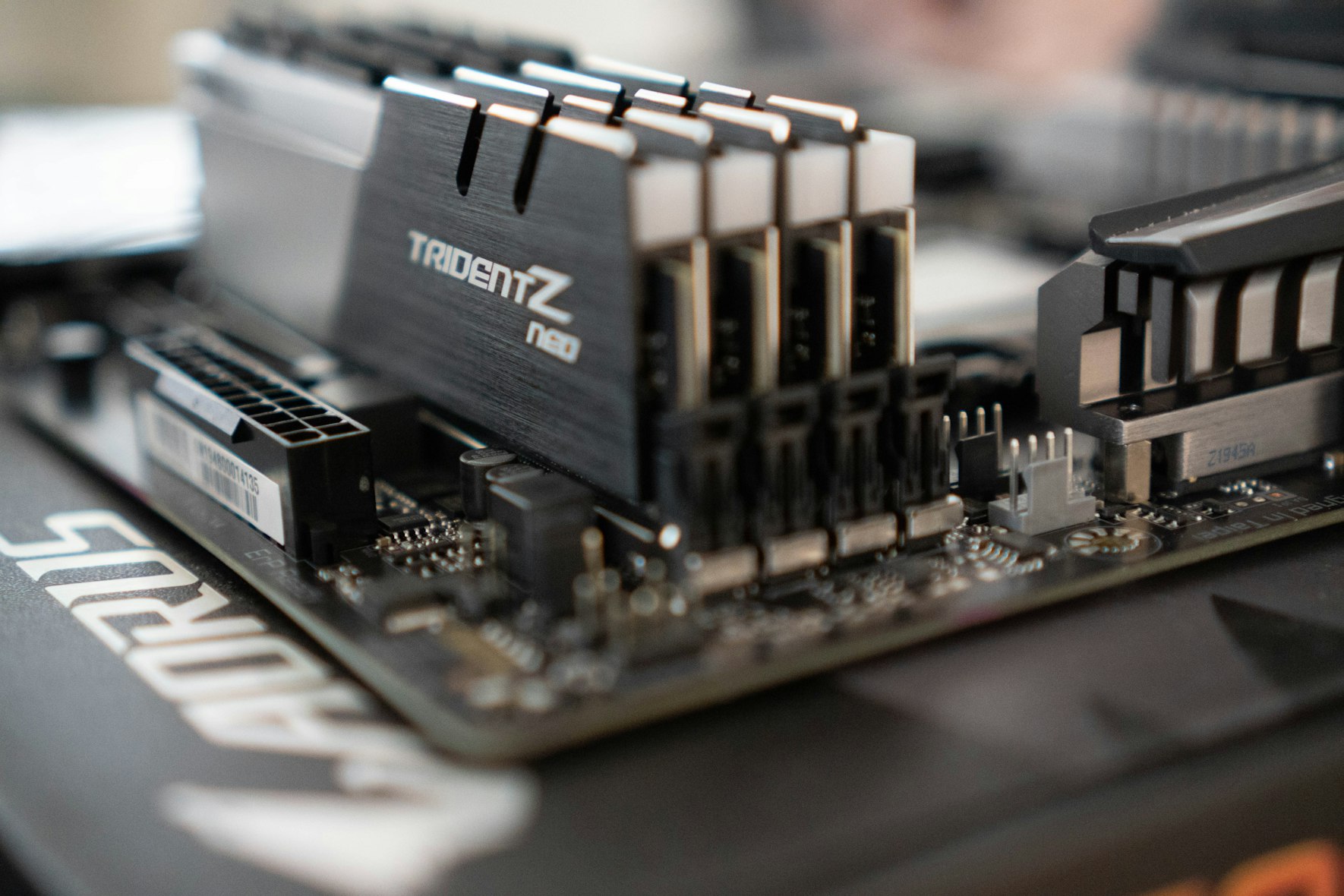
If you want to know How to fix RAM RGB stopped working in Windows 11? Here we bring you the best solutions.

Today we will show you step by step on How to fix it Sorry, we are having trouble installing this feature.

If you don't know how to fix the Windows key that doesn't work in the game in Windows 11, don't worry, here we leave you the best complete guide.

Today's article will talk about How to fix scanner error 0x00000015, operation could not be completed, device is not ready.
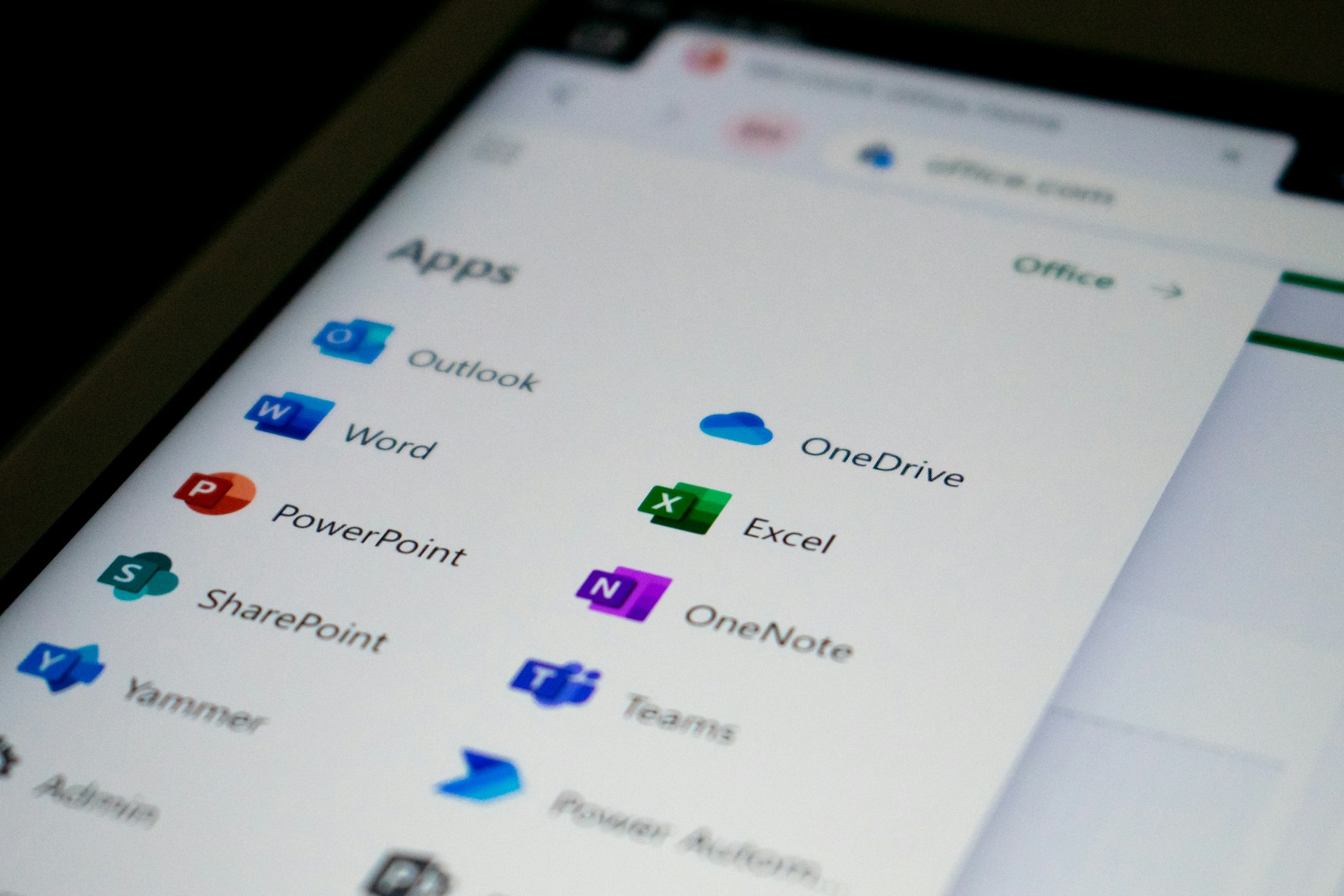
Today we bring you the best guide so you can learn how to fix the OneDrive error that cannot show this file
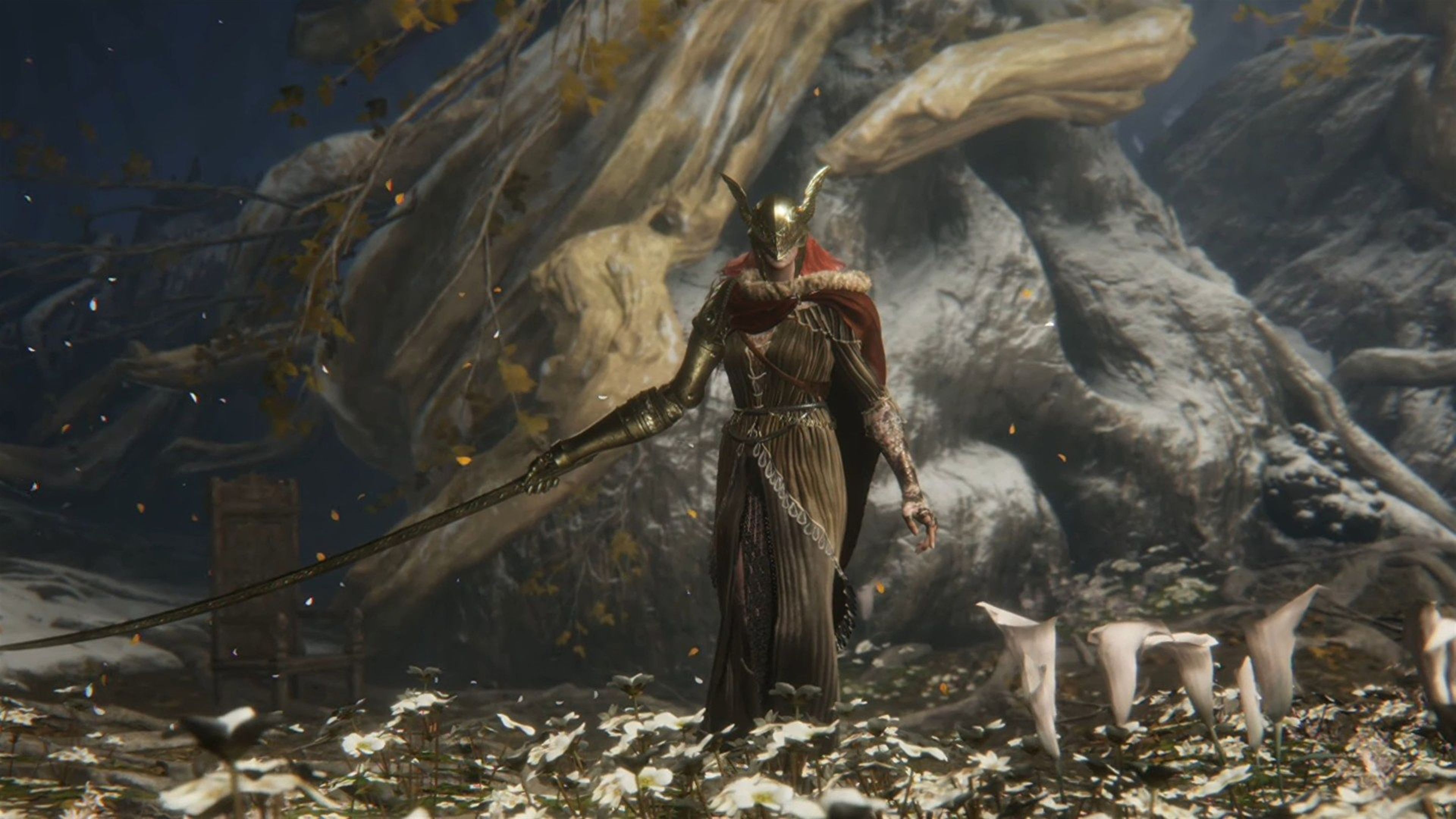
I'm going to show you where to get the Haima cannon in Elden Ring