
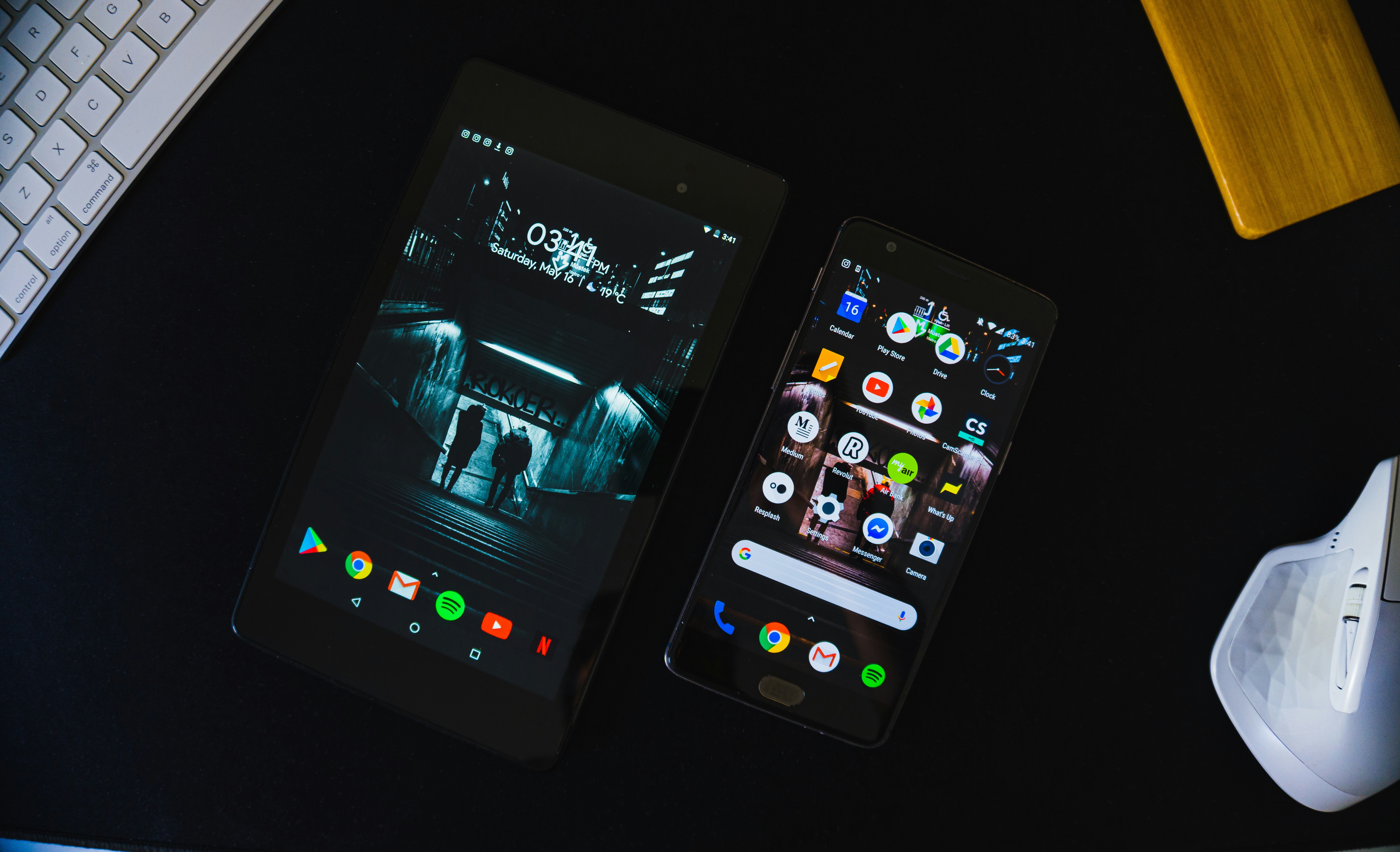
I will explain to you How to fix the error “Error checking for updates” in Google Play Store
The “Error checking for updates” error on Google Play Store means that the app is unable to get all the latest updates from the installed apps. This error usually occurs due to some corrupt cache data from Play Store or a server connection issue. It is usually caused by data cache corruption in Play Store or Google Play Services.How to fix the error “Error checking for updates” in Google Play Store
The “Error checking for updates” error on Google Play Store means that the app is unable to get all the latest updates from the installed apps. This error usually occurs due to some corrupt cache data from Play Store or a server connection issue. It is usually caused by data cache corruption in Play Store or Google Play Services.
Fixing “Error checking for updates” error on Play Store
Incorrect device settings or connection issues can also play a role.
In this article, we will discuss different ways to fix this error.
1. Clear data and cache
Cache or data corruption in Play Store can prevent it from accessing updates properly. Clearing this cache and data fixes these issues, allowing the app to reconnect to Google servers and start checking for and downloading updates without any issues.
- Pull down the notification panel and tap the settings icon. Click on the settings gear
- Scroll down and tap on Apps. Click on the “Apps” option
- Select Apps and look for Google Play Store in the list. Select Google Play Store from the list
Note: If Google Play Store is not visible, tap the three dots in the top right corner and choose “Show system apps.”
- Tap on Storage and select “Clear cache” and “Clear data.” Click on the “Clear cache” button
- Wait for the cache to be cleared and determine if the error still persists.
2. Remove updates
Reverting Play Store to its defaults can resolve recent issues. This step removes faulty data that would help the app start working as expected in the first place.
- Expand the notification drawer and tap the settings icon.
- Scroll down and tap Apps.
- Select Apps and look for Google Play Store in the list. Select Google Play Store from the list
Note: If Google Play Store is not visible, tap the three dots in the top right corner and select “Show system apps.”
- Tap the three dots in the top right corner and choose “Uninstall updates.” Click the three dots in the top right corner and select “Uninstall updates”
- Check if the problem persists.
3. Update your device’s OS to the latest version
Updating your device to the latest OS version improves compatibility with Google Play services and fixes bugs. An updated OS ensures smoother interactions with apps, prevents conflicts, and improves app performance.
- Open Settings on your phone and go to About phone. Tap About phone in Settings
- Select System update and tap Check for updates. Check for updates on your Android phone
- If an OS update is available, apply it and restart your phone.
- After restarting, check if the Google Play update issue is resolved.
4. Allow Google Play Store to update over any network
Allowing Play Store to update over any network and not just Wi-Fi can help when Wi-Fi is unstable or unavailable. This allows updates to happen over mobile data, ensuring that Play Store can check for updates without any issues and reducing connectivity errors.
- Open Google Play Store and tap the menu icon (hamburger menu) in the top left corner.
- Scroll to the bottom, open Settings and select Auto-update apps.Open Google Play Store Settings
- Select On any network and tap Done. Set Google Play to update apps on any network
- Check if this resolves the Google Play update error.
5. Adjust your device's date and time
Set your device's date and time correctly so that Play Store syncs with Google servers. Wrong settings can cause it to frequently drop connection attempts, and get errors before updating. Entering these correct settings allows Play Store to check for updates without any issues.
- Go into phone settings, check date and time
- Enable Automatic date and time and Automatic time zone.
- Disable the 24-hour format option and restart your mobile phone. Turn on automatic date and time and turn off 24-hour format
- After restart, check if Google Play is updating apps correctly
6. Grant all necessary permissions to Google Play Store and services.
Make sure that Google Play Store and Google Play services have all necessary permissions for updates to be installedThey help updates to happen properly.
- Clear the cache and data of both Google Play Store and Google Play services—which are under Manage Space—together, Google Services Framework, and Google App. Delete the cache and data of Google Play services. Restart your device. Then, go to Settings and open Apps.
- Select Google Play Store, choose Permissions, and make sure they are all enabled. Enable Google Play Store permissions
- Do the same for Google Play services.
- Open Google Play Store and configure it if necessary.
- Install a new app like Zoom or Skype and check if the update issue is resolved. Install Zoom from Play Store
7. Manually update some apps in Play Store
Manually updating specific apps can refresh the Play Store update process and remove stagnant updates. This method focuses on individual apps, avoiding issues with automatic updates and allowing new apps to install smoothly.
- Open Play Store and search for an installed app, such as Chrome, using the search bar.
- It's important to update the app if it's available. Repeat the process for other apps, especially Google apps. You can update alphabetically or use a third-party app like Update Software Fast Update for All Android. Update Google Chrome from Play Store
- After updating the apps, check if the Play Store update issue is resolved.
8. Delete some of the apps on your device
Uninstalling unnecessary apps can fix Play Store errors because limited storage can negatively affect updates. When storage is almost full, Play Store may fail to download and check for updates, resulting in an error. Deleting unused apps makes room for updates, so Play Store can perform better and reduce errors.
8.1. Uninstall problematic apps
- Open Google Play Store and access its menu.
- Go to My apps & games and select the Installed tab. Open My apps and games
- Select Reviews and uninstall non-essential apps (such as Alexa, OnePlus Notes, or AdClear) to resolve the issue. Open Reviews in the Installed tab
- Check if the update issue is resolved.
8.2. Uninstall apps that haven't been updated for a long time
- If the problem persists, goto the "Installed" tab of My apps and games in Play Store.
- Sort by "Last updated" and scroll down. Sort installed applications by last update
- Remove the applications which have not been updated for a long time and check if the problem is solved.
8.3 Removing incompatible applications
- If the problem persists, open all the installed apps one by one (you can try a third-party app like Update Software List or List My Apps and export the list of apps with hyperlinks to their Play Store page as HTML. You can then use that HTML in your phone's Chrome browser to check the apps one by one) in Play Store and check if the app shows Open, Update, Enable, or No longer supported on device. Open the exported HTML file of your apps in Chrome
- If Enable is displayed, enable the app. If No longer supported on device is displayed, delete the app and then check if the update issue is resolved.This device is no longer supported on your device
8.4. Uninstall apps that were removed from Play Store
- If the problem persists, open Settings and go to Apps.Open Apps in your phone's Settings
- Go through your installed apps and tap App details to open the app's Play Store page. If the app has been removed from the Play Store, uninstall it and check if that fixes the update issue. Open App Details in the App Settings
9. Remove some of the Google accounts from your phone
If you have multiple Google accounts on your device, they can sometimes conflict and cause Play Store update issues. Removing one or more accounts can reduce sync errors and network conflicts, helping the Play Store check for updates more smoothly. This action simplifies account management and often quickly resolves update errors.
9.1. Enable sync for the Google Play Store
- Open Settings and go to Accounts (you may need to check More settings). Open Accounts in Phone Settings
- Select Google and make sure all accounts are syncing correctly. Open Google under Accounts in Phone Settingsphone
- If an account won't sync, tap on it.
- Check and enable sync options, especially for Google Play, to see if that fixes the update issue. Enable sync for Google Play in Accounts
9.2. Remove some of the accounts
- If necessary, tap the Google account in Settings > Accounts > Google and tap More.
- Select Remove account and confirm. Remove the problematic Google account
- Restart your device and check if the update issue is fixed.
9.3. Remove all Google accounts
- Remove all Google accounts and restart your device.
- After the restart, create a new Gmail account on the device and sign in with it to see if the issue is resolved. If you prefer to use your old accounts, update their passwords before adding them back to the device.
I will explain to you How to view download history on Google Play Store
Discover the top Google Play Store alternatives for downloading Android apps. Find the best app stores to enhance your mobile experience.

I will teach you how to fix the problem? The current input timing is not supported?

I will tell you how to disable notes on posts and reels on Instagram

To learn how to fix the Hamachi tunnel problem in Windows, here is a step-by-step article.

If you are wondering how to fix Microsoft Teams crashing while loading on Windows, here is a guide with the best answer.

Today in our post you will learn How to fix the problem that the camera reports that it is blocked or turned off.
Here we leave you a step-by-step guide so that you know How to solve the problem that the Microsoft initial installation program has stopped working.
If you don't know how to fix the DRAM “POST” light on any motherboard, here is a guide that will help you.

Today in our guide we show you How to fix Rocket League error 71 in a simple way.