

In this documentary I will explain how to solve the problem “Photoshop could not complete your request because of a program error”
The message “Photoshop could not complete your request because of a program error” usually appears when opening, saving, or closing files. This error means that something is not working right in Photoshop, often due to corrupted files, incorrect settings, or problems with the graphics card. The main cause is usually a conflict with the graphics processor, especially after updates.How to solve the problem “Photoshop could not complete your request because of a program error”
The message “Photoshop could not complete your request because of a program error” usually appears when opening, saving, or closing files. This error means that something is not working right in Photoshop, often due to corrupted files, incorrect settings, or problems with the graphics card. The main cause is usually a conflict with the graphics processor, especially after updates.
Photoshop could not complete your request due to a program error. Other possible reasons include messed up preferences, third-party plugins, or problems with file permissions.
Now that we are done with that, let’s look at the solutions.
1. Change the image file
Extension Sometimes, an image file that has the wrong extension can cause errors in Photoshop. By changing the file extension, Photoshop might recognize and handle the file correctly. This happens because the software might not understand the file due to formatting issues or metadata that is incompatible with the current extension.
2: Disable the Graphics Processor Option
Disabling the graphics processor can help prevent conflicts between Photoshop and your graphics card, which are often caused by driver issues or software updates. This causes Photoshop to use the CPU instead, which prevents crashes or errors related to the graphics card.
- Open Adobe Photoshop.
- Once Adobe Photoshop is open, press the “Control + K” keys together to open Preferences.
- Navigate to the “Performance” section and uncheck the “Use Graphics Processor” option. Now, restart Adobe Photoshop and you should be good to go. If the problem persists, check out the other solutions.
- Uncheck “Use Graphics Processor”
3: Disable Builder
This feature has the advantage of facilitating the quick creation of assets, but in some cases it can cause conflicts that result in the “programmatic error” error. Disabling it stops unnecessary inline processes that can put you out of trouble caused by poorly chained or incompatible plugin actions.
- Open Adobe Photoshop Click the Edit drop-down menu and select Preferences.
- Switch to the Plugins tab and uncheck the “Enable Builder” checkbox.
- Once you’ve done that, click OK.
- Restart Photoshop and see if that resolves the issue.
- Disable Builder
4: Unlock Library Folder MAC
Files are often hidden or restricted so Photoshop can’t get the resources it needs from these files. By giving Photoshop full access to the system files it needs to function properly, you can fix permission errors that can interfere with saving, opening, or modifying files.
- Open Finder and then navigate to your user directory. You can do this by searching for ~/Library/ in the search box.
- Once you see the Library folder, right-click on it or press Ctrl and click on the folder to reveal the drop-down menu.
- Click Get Info.
- Uncheck the “Locked” box in the folder details.
- Try this and see if the problem goes away.
Unlocking Folder
5: Reset Photoshop Preferences
If none of the solutions work, resetting Photoshop preferences can fix hidden issues. This step returns the software to its default settings, removing any broken or conflicting changes made over time. It helps get rid of complicated settings without affecting saved files, giving Photoshop a fresh start to work smoothly again.
For Mac
- Simply head to the ~/Library/Preferences/Adobe Photoshop CSx Settings/ directory.
- Once there, move the CS6 Prefs.psp file to your desktop. Here CS6 is the version, so it may vary in your case, but you get the idea.
- That's it.
Photoshop Preferences File
For Windows
- Press Windows + R keys to open the Run dialog box.
- Type %AppData% and hit Enter. This will take you to the AppData directory.
- There, navigate to the Roaming/Adobe/Adobe Photoshop CSx/Adobe Photoshop Settings/ directory.
- Once you're there, move the Adobe Photoshop CS6 Prefs.psp and Adobe Photoshop CS6 X64 Prefs.psp files to your Desktop.
Photoshop Preferences File Once you've done that, run Adobe Photoshop again and see if your problem has been resolved.
Discover effective solutions to resolve the program error preventing the closure of Photoshop on our website.
Learn how to efficiently select all areas of the same color in Photoshop. Master the art of precision with this step-by-step guide.

I will teach you today how to get the Liturgy grenade launcher in Destiny 2

If you don't know how to fix the Nvidia Shield remote control not working issue, here is a step-by-step guide that will help you.

If you are wondering how to complete Old Enemies in Disney Dreamlight Valley? then here is a complete guide with the best answer.

Here we will show you step by step How to defeat the sea horror Homo Sabara in Metaphor ReFantazio.
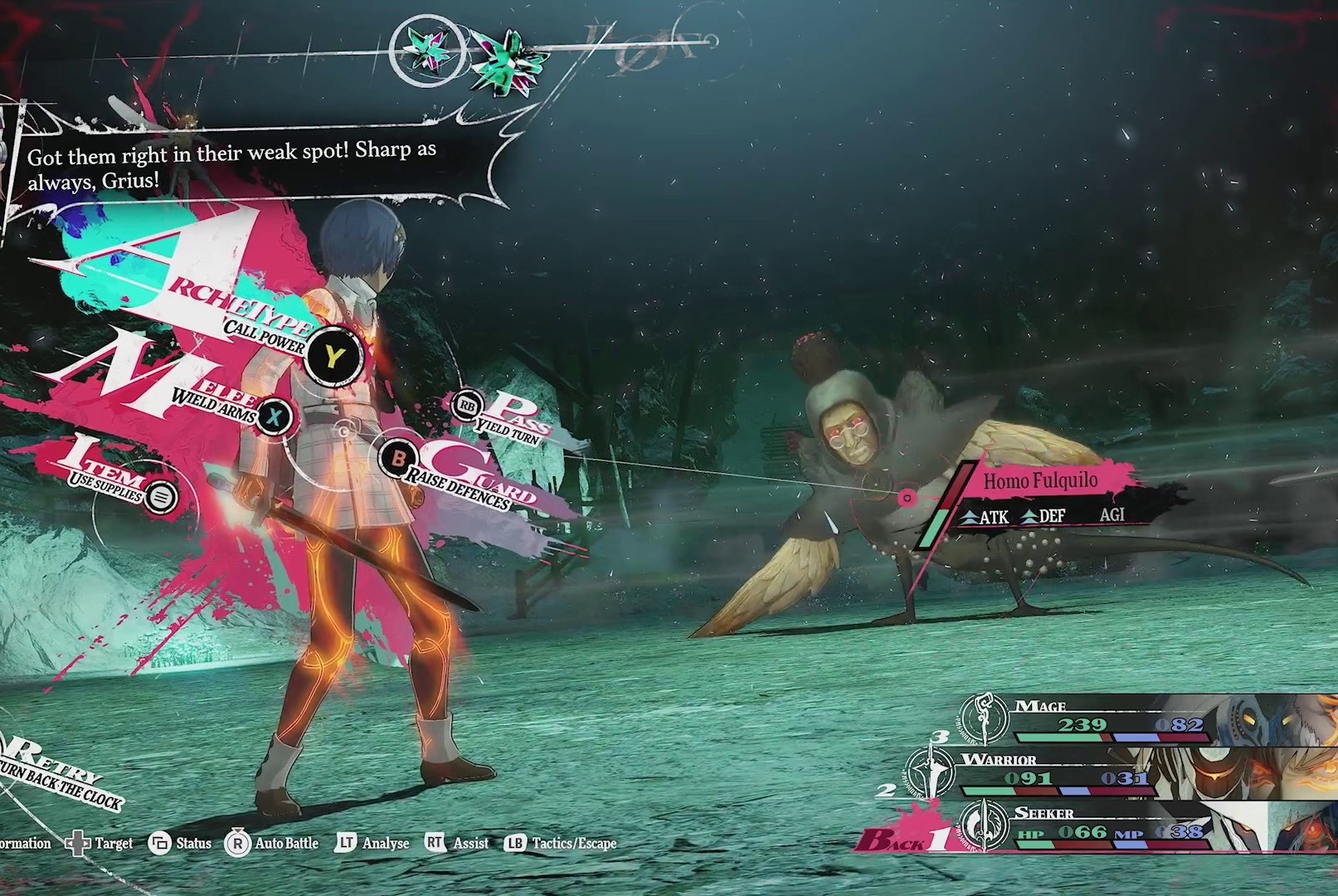
To learn how to defeat the Great Worm Homo Butera in Metaphor ReFantazio here is a step-by-step guide.

Today we show you step by step How to get shiny Meloetta in Pokémon HOME.

If you don't know how to play the SURVIVE open beta, here is a guide that will help you with it.

In this documentary I will guide you How to fix error 0xc0ea000a “Windows cannot be activated”?