
Learn how to fix Gmail search not working on your phone or PC. Get troubleshooting tips and step-by-step instructions to resolve this issue and improve your Gmail experience.
Have you been experiencing issues with your Gmail search function on your phone or PC? Don't worry, we're here to help! In this guide, we'll walk you through some simple steps to get your Gmail search up and running again. Let's dive in!
Check Gmail Server Status
One of the first things you should do when experiencing issues with your Gmail search is to check the status of Gmail servers. Sometimes, Gmail might be down or experiencing technical difficulties, which can affect the search functionality. To check the server status, you can visit the official Gmail Help Center or use third-party websites that monitor the status of popular services like Gmail. If the server status is reported as normal, then the issue might be on your end.
Verify Internet Connection
Another common reason why Gmail search might not be working is a poor or unstable internet connection. To ensure that your internet connection is not causing the issue, try accessing other websites or apps on your phone or PC. If you're experiencing difficulties with other platforms as well, then the problem is likely with your internet connection. In such cases, you can try resetting your router, connecting to a different network, or contacting your internet service provider for assistance.
Restart the Gmail App
Sometimes, all you need is a simple refresh to fix any minor glitches or temporary issues with the Gmail app. To restart the Gmail app on your phone, simply close it and reopen it again. On a PC, close the Gmail tab or window and open it again. This will force the app to reload and might resolve any issues causing the search function to not work properly.
Update the Gmail App
Outdated versions of the Gmail app can sometimes cause issues with certain features, including the search function. To ensure that you have the latest version of the app installed, go to your device's app store (Google Play Store for Android or App Store for iOS) and check for any available updates for the Gmail app. If updates are available, install them and restart the app to see if the search functionality is restored.
Clear Cache Data
Cache data can accumulate over time and can sometimes cause conflicts or issues with the Gmail app, including the search function. Clearing the cache data can help resolve these problems. To clear the cache data on your phone, go to the Settings app, find the Apps or Applications section, locate the Gmail app, and select the option to clear the cache. On a PC, you can clear the cache data by going to the browser settings, finding the Privacy or History section, and clearing the cache from there. After clearing the cache, restart the app or browser and try using the search function again.
Turn On Sync Setting
Syncing your Gmail account ensures that all your emails are properly indexed for search. Sometimes, if the sync setting is turned off, it can prevent the search function from working correctly. To turn on the sync setting on your phone, go to the Settings app, find the Accounts or Cloud & Accounts section, select your Gmail account, and make sure the sync option is enabled for emails. On a PC, you can check the sync settings by clicking on your profile picture in Gmail, selecting "Manage your Google Account," and navigating to the Sync tab. Make sure that the sync option for emails is turned on.
Reinstall the App (if necessary)
If all else fails, you can try uninstalling and reinstalling the Gmail app on your phone or PC. This step should only be taken if you have exhausted all other options and the search function is still not working. To uninstall the app on a phone, go to the Settings app, find the Apps or Applications section, locate the Gmail app, and select the option to uninstall. On a PC, you can uninstall the app by going to the Control Panel, finding the Programs or Apps & Features section, locating the Gmail app, and selecting the option to uninstall. After uninstalling, go to the app store or Gmail website to download and reinstall the app. Once reinstalled, sign in to your Gmail account and check if the search functionality has been restored.
By following these steps, you should be able to fix any issues with your Gmail search functionality on both your phone and PC. Remember, if one method doesn't work, simply move on to the next until you find a solution that works for you. It's important to stay patient and persistent when troubleshooting technical issues. If the problem persists, you can reach out to Gmail support for further assistance. Happy searching!
In today's article we will show you and teach you How to fix email stuck in Gmail outbox
How to insert a table in Gmail? If you are wondering the same thing, this guide is for you.
Learn how to efficiently organize your Gmail inbox with easy-to-follow steps for creating effective filters.
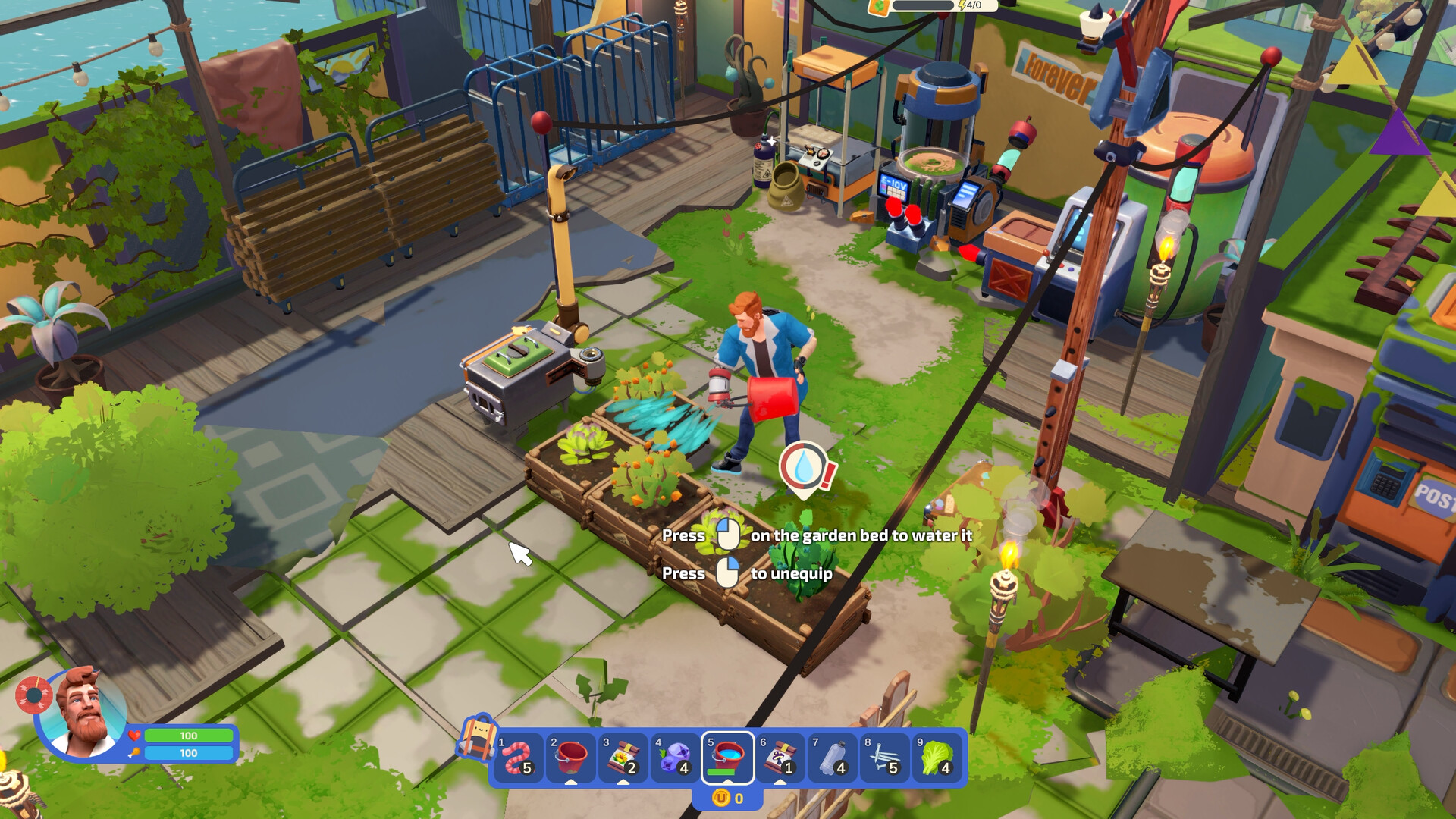
Discover where to find the fridge battery in the futuristic world of "I Am Future."
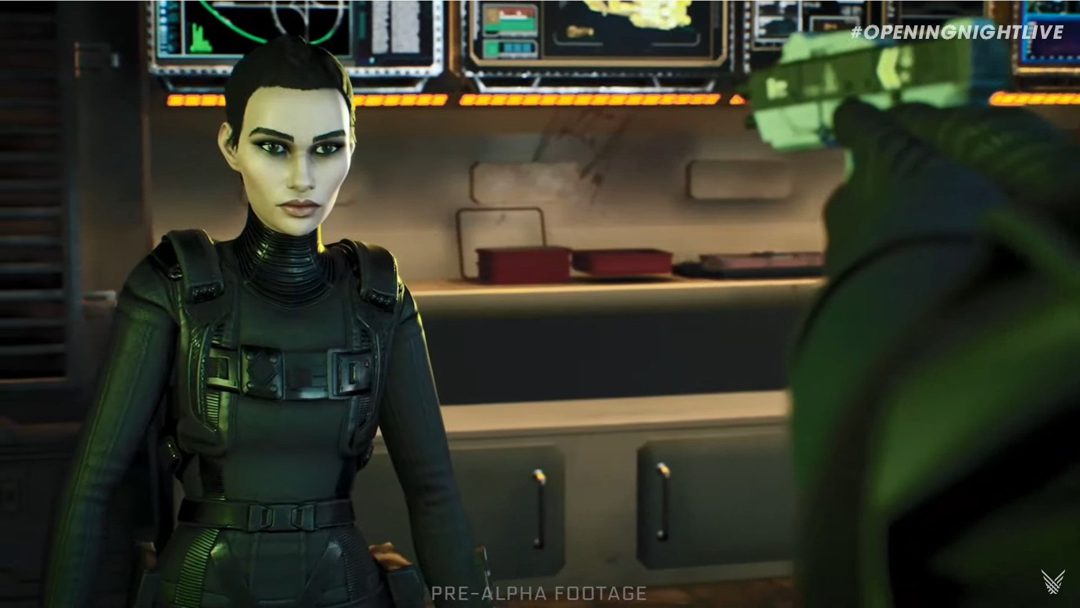
Discover where to find medicine for Arlen in The Expanse: A Telltale Series. Uncover the locations and secrets that will aid you in your quest to help Arlen in this gripping interactive story.

Learn the art of bug catching in Palia with our step-by-step guide. Discover tips, tricks, and strategies to improve your bug-catching skills and become a master bug hunter in this captivating virtual world.

Learn how to catch bugs in Palia with these expert tips and techniques. Discover the strategies to improve your bug-catching skills and make the most out of your gaming experience in Palia.

Learn how to create standard smoke bombs in Palia with this informative guide. Discover the step-by-step process and materials needed to create impressive smoke effects.
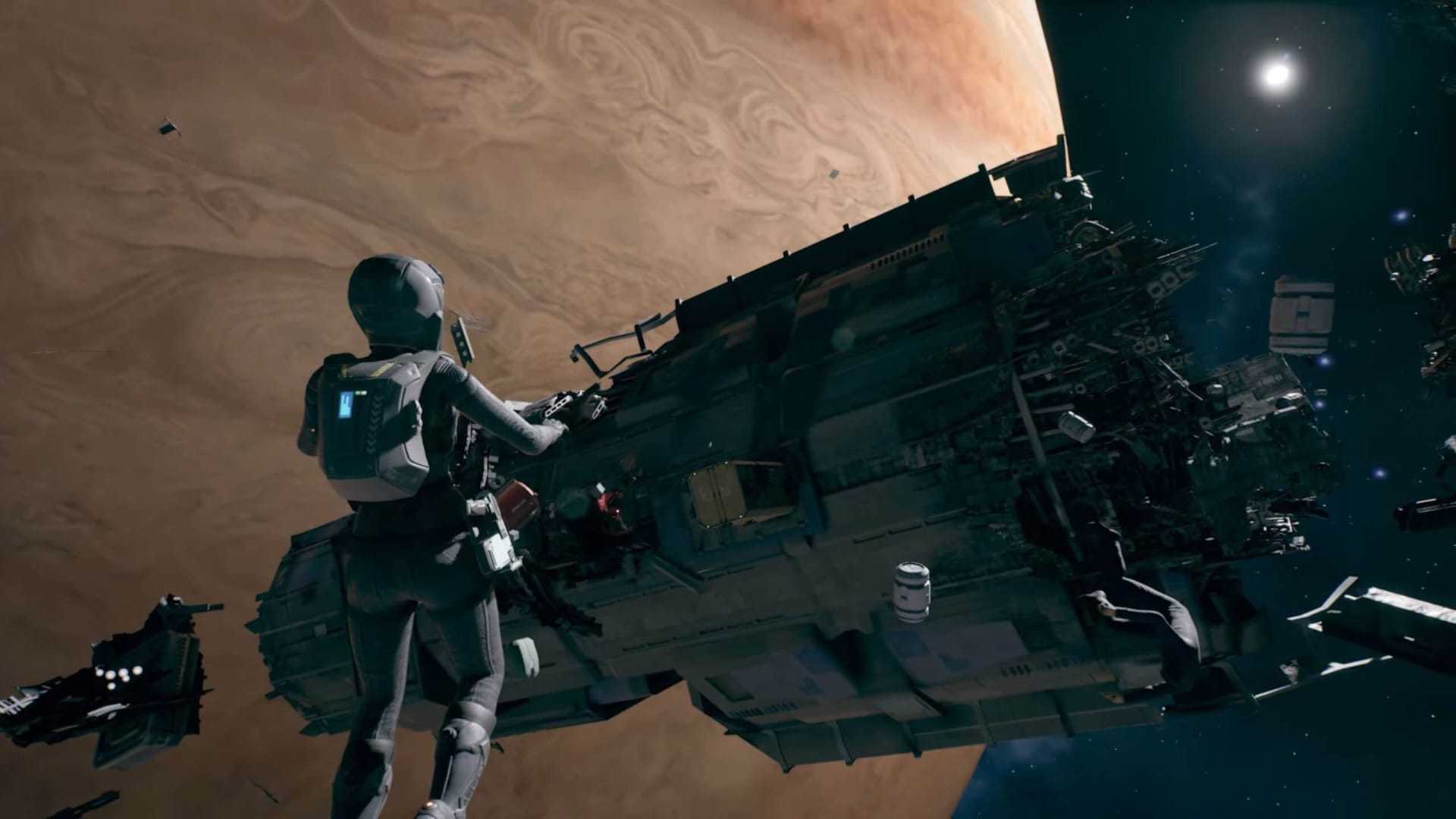
Unlock the secrets of giving scotch to Cox in Expanse with this immersive Telltale Series. Discover the hidden choices and navigate through captivating gameplay to make the perfect pour.

Learn how to hack Virgil's private computer in Expanse: A Telltale Series. Follow our step-by-step guide to gain unauthorized access and uncover hidden secrets.

Looking for Mr. Ditch in Jagged Alliance 3? Discover the best locations to find him and unlock new adventures in this thrilling game.