

Pay attention because in the next article we will teach you How to fix Steam not opening, so pay attention.
If Steam won't get past the connection screen or won't load, you'll want a little help to fix the problem.
Here's a consolidated guide on how to fix Steam not opening:
Troubleshooting Steam Launch Issues:
How to Fix Steam Won't Open?
Basic Checks:
- Network Connection: Ensure you have a stable internet connection. Restart your router or try a different network if necessary.
- Close Conflicting Processes: Open Task Manager (Ctrl + Shift + Esc) and end any Steam processes running in the background.
Advanced Troubleshooting:
- Restart & Update: Restart your computer and check for Windows updates (Settings > Windows Update). Outdated software can sometimes cause compatibility issues.
- Firewall & VPN: Temporarily disable your firewall and VPN to see if they're blocking Steam. Re-enable them after troubleshooting.
- Run as Administrator: Right-click the Steam shortcut and select "Run as administrator" to launch Steam with elevated permissions.
- Disable Compatibility Mode: Right-click the Steam shortcut, select "Properties" and ensure "Compatibility mode" is disabled.
- Clear Cache: Close Steam, right-click the shortcut, and select "Open file location." Delete the "appcache" folder to clear the cache.
- Flush Steam Configuration: Open the Run dialog (Win + R) and type steam://flushconfig. This resets Steam's configuration.
- Verify Date & Time: Ensure your computer's date and time settings are correct. Incorrect settings can cause launch issues.
Last Resort:
Reinstall Steam: If none of the above solutions work, uninstall Steam, download the latest installer from the official website, and reinstall it.
Additional Tips:
- Consult Steam Support: If you're still having trouble, refer to the Steam Support website or community forums for further assistance.
- Check System Requirements: Make sure your computer meets the minimum system requirements to run Steam.
By following these steps systematically, you should be able to identify and fix the problem preventing Steam from launching on your computer. Remember to try the easier solutions first and proceed to more advanced steps only if necessary.
This is everything you need to know about How to fix Steam not opening, we hope that our guide has been as helpful as possible so you can correct the problem.
Here we leave you a complete step-by-step guide so you can learn how to fix the problem of Steam not downloading games or getting stuck at 0 bytes/sec.
If you do not know how to fix Access is denied error in Steam, then everything is described below.
I will teach you how to hide Steam activity from your friends
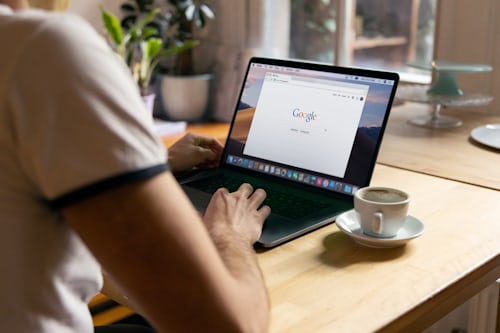
If you continue reading you can learn how to solve slow loading times in the Arc browser, so if this interests you, pay attention.

Get ready to learn how to fix the infinite loading problem in Arc Browser, because we will address this in detail for you.

In case you don't know How to fix flickering in Arc Browser? You don't have to worry, because below we will help you correct the problem.

If you don't know how to solve error 500 in Dropbox? Don't worry, because below we will show you how to do it.

Pay close attention so that you can learn How to run a PowerShell script?, because here we will teach you how to do it.
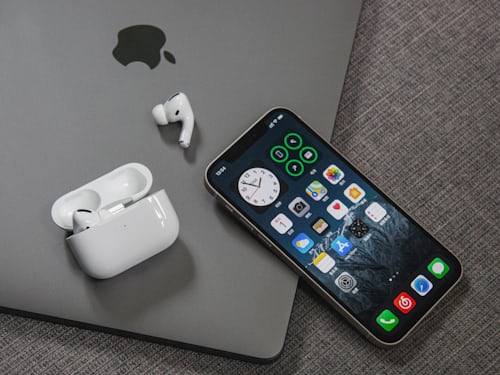
If you want to know how to mirror your iPhone to a Mac then pay attention because we have covered everything you need to know below.

If you want to know how to watch Meta Connect, pay attention, because here you can find everything you need to know.

Keep reading if you don't know how to connect PS5 and Discord accounts, because we have covered everything you need to know about it.